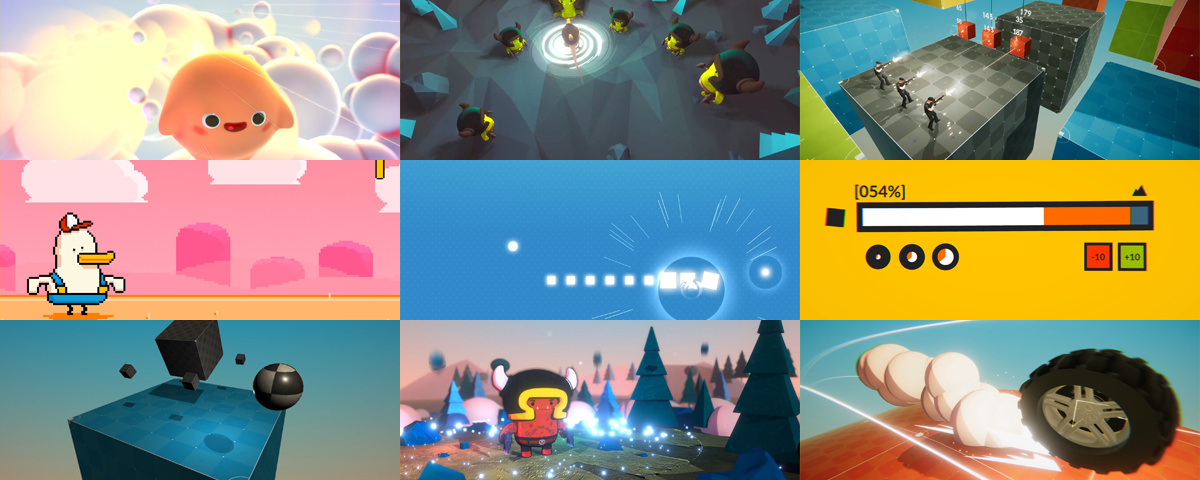
Feel is a solution to provide on-demand game feel to your Unity game,
with as little friction or setup as possible. It's modular, user friendly, and very easy to extend and build upon.
Packed with 200+ feedbacks, it'll let you easily trigger screenshakes, animate transforms, play with sounds, cameras, particles, physics, post processing, text, shaders, time, UI, and so much more.
Initially created for the Corgi Engine
and the TopDown Engine,
it's a proven and battle tested solution that just gets the job done.
What's in Feel?
MMFeedbacks contains the MMF Player, a revolutionary system letting you trigger all sorts of effects effortlessly. Easy to setup, fun to use, it'll change the way you work in Unity.
MMTools is a library packed with various useful tools, and I thought it’d be nice to include it in the asset. Don’t hesitate to dig through it, it’s packed with surprises!
Included in Feel as a gift, Nice Vibrations is the best way to add haptic feedbacks to your iOS or Android game. You can learn more about it on its dedicated website.
Feel is packed with more than 35 demos, showcasing its various features. They showcase the various ways you can use Feel to make your games awesome.
Demo
Below is a small demo of some of the feedbacks included in the asset. Due to the current limitations of WebGL builds,
most audio feedbacks won't work. This demo also doesn't demonstrate the URP feedbacks, the haptics ones, etc. It's
still pretty cool!
Just scroll and click on any effect in the list on the left. Keep in mind that this will only show
one example of use of each feedback. They can all be customized with tons of options,
possibilities are endless.
But wait, there's more! Feel comes packed with more than 35 demos showcasing all the great tools it contains. From small scenes focusing on a particular feature, to a complete
and enhanced game of Snake, packed with feedbacks for each of its microinteractions, there's tons of contents to explore.
Go play with them right now!
Or you can check out this neat release trailer for Feel :
MMFeedbacks
Feel comes with the MMF Player, which lets you stack and trigger feedbacks extremely easily. It's packed with 200+ of them, ready to use. Most of them
are completely autonomous and don't require any dependency, and some of them are dedicated to make use of Unity packages like TextMesh Pro, Cinemachine, URP, HDRP or PostProcessing. Feel free not to use them if you don't want to.
Here's a complete list of all the feedbacks included in the asset :
💃 Animation
Animation Crossfade : lets you cross fade your Animator to a specified state, over regular or normalized time
Animation Parameter : bind an animator to the feedback's inspector, and it'll let you update trigger and/or bool animation parameters
Animator Play State : lets you play a state by its name, either in fixed or normalized time
Animator Speed : update your animator's speed in real time
Sprite Sheet Animation : lets you animate target SpriteRenderers and/or Images with a simple list of sprites, without the need for an Animator component
🔊 Audio
Audio Filter Distortion : tween the distortion level of a distortion filter over time
Audio Filter Echo : tween echo over time
Audio Filter High Pass : tween the cutoff of a high pass filter over time
Audio Filter Low Pass : tween the cutoff of a low pass filter over time
Audio Filter Reverb : tween reverb levels over time
AudioMixer Snapshot Transition : lets you transition to a target snapshot over a specified duration
AudioSource : lets you play, pause, unpause or stop a preexisting AudioSource on demand, optionally at a random pitch and volume, and through an optional audio mixer group
AudioSource Pitch : tweak an AudioSource's pitch over time
AudioSource Stereo Pan : alter the stereo pan value of an AudioSource over time
AudioSource Volume : lets you tween the volume of an AudioSource over time
MMPlaylist : lets you pilot a target MMPlaylist (play, pause, stop, next, previous, etc)
MMSoundManager All Sounds Control : control all sounds playing on a MMSoundManager
MMSoundManager Save and Load : save and load MMSoundManager settings (track volume, etc)
MMSoundManager Sound : lets you play a sound on the MMSoundManager, with fine control over all its settings, and an optional limit on how many instances of it can play at once
MMSoundManager Sound Control : lets you play/pause/resume/stop/set the volume of a sound playing on the MMSoundManager
MMSoundManager Sound Fade : lets you fade sounds in/out on the MMSoundManager
MMSoundManager Track Control : lets you control entire tracks (master, music, sfx, UI, or your own custom tracks) on a MMSoundManager : mute, pause, stop, set their volume or their pitch
MMSoundManager Track Fade : lets you fade the volume of the MMSoundManager's tracks
MMSoundManager Track Pitch Fade : lets you fade the pitch of an entire track over time, perfect for slow motion effects
Sound : another way to trigger a sound. You specify an audio clip, and then you can decide to have it instantiated on demand, cached, have it create an object pool of ready to use sounds, or even trigger a sound event. This feedback also lets you preview your sound from the editor
🎥 Camera
Camera Shake : simply shakes the camera over time, lets you specify a duration (in seconds), an amplitude and a frequency
Camera Zoom : lets you zoom in or out when the feedback plays, either for a specified duration, or until further notice
Cinemachine Dutch : lets you control the dutch angle of a Cinemachine Camera (its tilt over the z axis)
Cinemachine Impulse : triggers a Cinemachine Impulse to shake your Cinemachine cameras
Cinemachine Impulse Clear : to cancel any Cinemachine Impulse that may be playing
Cinemachine Impulse Source : lets you generate an impulse on a target Cinemachine Impulse Source
Cinemachine Transition : lets you transition to another Cinemachine camera, using the blend of your choice, and auto managing other cameras' priorities
Clipping Planes : lets you tween the near and far clipping planes distances of a camera over time
Fade : fades an image in or out, useful for transitions
Field of View : control a camera's field of view over time
Flash : flashes an image on screen, or simply a color for a short duration
Orthographic Size : for orthographic/2D cameras only, lets you tween the camera's size over time, basically zooming in or out
🐞 Debug
Break : causes a Debug.Break() when played
Comment : lets you leave a note in your feedbacks list, and optionally output it to the console
Log : lets you output debug messages to the console, using different methods (MMDebug, warning, error, log, etc)
📅 Events
MMGameEvent : will trigger a MMGameEvent of the specified name when played
Random Unity Events : lets you play a random unity event, out of a weighted list of events, letting you control its probability/chance of playing
Unity Events : lets you associate any sort of Unity event to a feedback, and lets you trigger them on play, stop, initialization or reset
🏉 Feedbacks
Feedbacks Player : lets you play a target MMF Player, all MMF Players within a certain range, or any MMF Player listening on a channel
MMF Player Chain : lets you sequence a number of MMF Players, triggering them one after the other with optional delays
MMF Player Control : lets you trigger methods on one or more target MMF Players
📦 GameObject
Broadcast : similar to the MMRadioSignal one, but directly broadcasts the signal to any receivers, instead of going through an emitter
Collider : enable/disable/toggle a target collider, or change its trigger status
Collider2D : enable/disable/toggle a target collider2D, or change its trigger status
Destroy : lets you destroy, destroy immediate or disable a specific game object
Enable Behaviour : enables or disables a monobehaviour when the feedback plays, inits, stops or resets
FloatController : possibly the most powerful of all the feedbacks, this one lets you control a float value on any monobehaviour
Instantiate Object : spawns objects when the feedback plays, at the specified position
Layer : change the layer of a target game object on play
MMRadioSignal : lets you control a MMRadioSignal, that can then be broadcasted to control receivers, to pilot any value you want on any component, on any object
Property : lets you target and control any property or field (floats, vectors, ints, strings, colors, etc), on any object (including ScriptableObjects), and control it over time
Rigidbody : adds force or torque to a Rigidbody, in world or local space
Rigidbody2D : adds force or torque to a Rigidbody2D
Set Active : sets an object active or inactive
📳 Haptics
Haptic Clip : play a .haptic clip, optionally randomizing its level and frequency
Haptic Continuous : play a continuous haptic of the specified amplitude and frequency over a certain duration, with optional randomization and modulation over time
Haptic Control : interact with haptics at a global level, stopping them all, enabling or disabling them, adjusting their global level or initializing/releasing the haptic engine
Haptic Emphasis : play an Emphasis haptic, short haptic bursts whose amplitude and frequency can be controlled in real time, also called Transients in CoreHaptics/iOS
Haptic Preset : play a preset haptic, limited but super simple predefined haptic patterns
💡 Lights
Light : complete control over a light's intensity and color over time
Light2D_URP : complete control over a URP 2D light's intensity and color (and more) over time
➰ Loop
Looper : moves the current "head" of an MMF Player's sequence back to another feedback above in the list. You can then have that sequence repeat any number of times of your choice, or indefinitely
Looper Start : can act as a pause but also as a start point for your loops
✨ Particles
Particles Instantiation : instantiate particles and play them. You can instantiate them on demand or cache them, and you can specify the position you want them at
Particles Play : control an existing particle system. The feedback also lets you move it to the feedback's position on demand
VisualEffect : gives you control over a target visual effect and lets you play/pause/stop/etc
VisualEffectSetProperty : lets you set the value of a Property ID of any type on a target Visual Effect
⏸ Pause
Holding Pause : holds until all previous feedbacks in the sequence, as well as this feedback's pause have been executed
Pause : causes a pause in the feedbacks sequence when met, preventing any other feedback lower in the sequence to run until the pause is complete
🪔 PostProcess (Post Processing Stack v2)
Bloom : control bloom intensity and threshold over time
Chromatic Aberration : control the force of a chromatic aberration over time
Color Grading : lets you play with many color grading options : post exposure, saturation, hue shift, contrast...
Depth Of Field : lets you control depth of field focus distance, aperture and focal length over time
Global PP Volume Auto Blend : tween a PostProcessing volume's weight
Lens Distortion : lens distortion on demand
PPMovingFilter : move a post processing filter in or out of the camera
Vignette : control vignette parameters over time
🧪 PostProcess (URP)
Bloom URP : control bloom intensity and threshold over time
Channel Mixer URP : control red, green and blue channels independently over time
Chromatic Aberration URP : control the force of a chromatic aberration over time
Color Adjustments URP : lets you play with many color adjustments options : post exposure, saturation, hue shift, contrast...
Depth Of Field URP : lets you control depth of field parameters over time
Film Grain URP : lets you control the grain intensity over time
Global PP Volume Auto Blend URP : tween a PostProcessing volume's weight
Lens Distortion URP : lens distortion on demand
Motion Blur URP : motion blur level over time
Panini Projection URP : tweak a panini projection's distance and crop to fit over time
Vignette URP : control vignette parameters over time
White Balance URP : control white balance parameters over time
🧪 PostProcess (HDRP)
Bloom HDRP : control bloom intensity over time
Channel Mixer HDRP : control red, green and blue channels independently over time
Chromatic Aberration HDRP : control the force of a chromatic aberration over time
Color Adjustments HDRP : lets you play with many color adjustments options : post exposure, saturation, hue shift, contrast...
Depth of Field HDRP : control HDRP Depth of Field focus distance or near/far ranges over time
Exposure HDRP : control exposure over time, in any exposure mode : fixed exposure, compensation, and min/max limits
Film Grain HDRP : lets you control the grain intensity over time
Lens Distortion HDRP : lens distortion on demand
Motion Blur HDRP : motion blur level over time
Panini Projection HDRP : tweak a panini projection's distance and crop to fit over time
Vignette HDRP : control vignette parameters over time
White Balance HDRP : control white balance parameters over time
💄 Renderer
Flicker : lets you rapidly change the color of a material, with flicker duration, octave and color control, on one or many renderers at once
Fog : lets you animate the density, color, end and start distance of your scene's fog
Line Renderer : lets you update a line renderer's width and color over time
MMBlink : controls an MMBlink, letting you do advanced blinking behaviours
Material : changes the material of the target renderer every time it's played, out of an array of materials. You can swap them sequentially or randomly
Material Set Property : set the value of the property of your choice on the target renderer's material, optionally via a MaterialPropertyBlock
Shader Global : control global shader values, instantly or over time
ShaderController : similar to the FloatController, lets you control most settings of any shader
Skybox : lets you assign a new material (at random or not) to change the scene's skybox to a new one
Sprite : change the sprite on a target sprite renderer
SpriteRenderer : take control of a SpriteRenderer's color and X or Y flip
SpriteRenderer Alpha : lets you animate the alpha of a target sprite renderer over time, regardless of its color
Texture Offset : lets you control a target renderer's material's texture offset over time
Texture Scale : lets you control a target renderer's material's texture scale over time
Trail Renderer : lets you update a trail renderer's length, width and color over time
🎬 Scene
Load Scene : lets you load a destination scene using various methods, either native or using MMTools' loading screens, even in the editor without adding scenes to your build settings
Unload Scene : lets you unload a scene, either by name or build index
♨ Springs
Spring Color : control any Color spring (light color, sprite color, image, etc)
Spring Float : control any float spring (vignette intensity, light, timescale, and so many more), either directly or via event
Spring Vector2 : control any Vector2 spring (texture offset, etc)
Spring Vector3 : control any Vector3 spring (position, scale, etc)
Spring Vector4 : control any Vector4 spring
📝 TextMesh Pro
TMP Alpha : change a TMP text's alpha over time
TMP Character Spacing : change horizontal spacing between characters in your TMP text over time
TMP Color : change text color over time
TMP Count To : lets you update a target TMP text with a float or rounded value going from A to B over time
TMP Count To Long : same as Count To, but using long instead of floats (useful to count up to really big numbers)
TMP Dilate : will tweak the position of the text contour in the distance field
TMP Font Size : lets you modify the size of a TMP's font over time
TMP Line Spacing : change vertical spacing between lines in your TMP text over time
TMP Outline Color : change a text's outline color over time
TMP Outline Width : change a text's outline width over time
TMP Paragraph Spacing : change vertical spacing between paragraphs in your TMP text over time
TMP Softness : will let you animate the softness of the text contour
TMP Text : lets you modify the text of a target TMP text component
TMP Text Reveal : lets you reveal a target text character by character, word by word, or line by line, over time
TMP Word Spacing : change horizontal spacing between words in your TMP text over time
⌚ Time
Freeze Frame : freeze the timescale for a short duration of your choice
Timescale Modifier : complete control over time, slow it down, speed it up, with optional customizable interpolation
🐢 Transform
Destination : lets you animate all properties (position, rotation, scale) of a transform to match a destination transform's properties
LookAt : rotate a transform to have it face a target
Position : lets you tweak the position of a transform over time, from A to B, along a curve, or to a destination
Position Shake : setup position shakes on any transform or rect transform
Position Spring : move or bump a target's position using a spring
Rotate Position Around : lets you rotate a target object around another center object, with full axis control
Rotation : lets you play with the rotation of a transform over time, packed with options, in absolute or additive mode, or to a destination
Rotation Shake : setup rotation shakes on any transform or rect transform
Rotation Spring : move or bump a target's rotation using a spring
Scale : lets you animate the scale of a transform over time, with similar options as the Position and Rotation feedbacks
Scale Shake : setup scale shakes on any transform or rect transform
Scale Spring : move or bump a target's scale using a spring
Set Parent : change a target transform's parent transform
Squash and Stretch : modify the scale of an object on an axis while the other two axis (or only one) get automatically modified to conserve mass
Squash and Stretch Spring : move or bump a target's scale by squashing and stretching it using a spring
Wiggle : lets you play with rotation, scale and position over time, via a MMWiggle component
🌶 UI
CanvasGroup : lets you control a CanvasGroup's alpha over time
CanvasGroup BlocksRaycasts : lets you turn the BlocksRaycasts parameter of a target CanvasGroup on or off on play
Floating Text : lets you easily spawn floaty text (usually damage text, but not limited to that)
Graphic : lets you update the color of a target UI Graphic over time
Graphic CrossFade : lets you trigger alpha or color cross fades on a target UI graphic
Image : lets you play with the color of an Image over time, or move it to a destination color
Image Alpha : lets you play with the alpha of an Image over time
Image Fill : lets you fill an Image over time
Image Material : lets you change the material of the target Image
Image RaycastTarget : lets you control the RaycastTarget parameter of a target image, turning it on or off on play
Image Sprite : lets you change the sprite of the target Image
Image Texture Offset : animate an Image's texture offset over time
Image Texture Scale : animate an Image's texture scale over time
RectTransform Anchor : lets you control a RectTransform's min and max anchor positions over time, or move them to a destination
RectTransform Offset : lets you control a RectTransform's offsets relative to its anchors, over time or to a destination
RectTransform Pivot : lets you control the position of a RectTransform's pivot point over time, or move it to a destination
RectTransformSizeDelta : lets you animate the size of a RectTransform relative to the distances between its anchors, over time or to a destination
Text : lets you control the contents of a target Text
Text Color : lets you change the color of a target Text over time
Text Font Size : lets you alter the font size of a target text over time
Video Player : lets you control VideoPlayer components in all sorts of ways (Play, Pause, Toggle, Stop, Prepare, StepForward, StepBackward, SetPlaybackSpeed, SetDirectAudioVolume, SetDirectAudioMute, GoToFrame, ToggleLoop)
🖼 UI Toolkit
UITK Background Color : interpolate background color over time
UITK Border Color : control border color over time
UITK Border Radius : change the radius of UI elements' borders over time
UITK Border Width : change the width of elements' borders over time
UITK Class : lets you modify the classes on target UI elements
UITK Font Size : change the font size of a target UI element
UITK Image Tint : change the tint of a target image
UITK Opacity : change the opacity of a visual element over time
UITK Rotate : rotate one or more target visual elements
UITK Scale : change the scale of one or more target visual elements
UITK Size : change the size of one or more target visual elements
UITK Stylesheet : attach a new stylesheet to your UI Document
UITK Text : replace a text with a new one
UITK Text Color : change a text's color over time
UITK Transform Origin : lets you move the point of origin where rotation, scaling, and translation occur
UITK Translate : translate a UI element
UITK Visible : lets you toggle a visual element's visibility on and off
🙋♀️ WHAT'S NEXT?
There are always more feedbacks coming, please don't hesitate to make suggestions.
Easy to use and documented
Using Feel is extremely easy, fast, and fun. The inspectors have been designed to be simple yet efficient,
and provide you with all the info you need at runtime. Simply add feedbacks, tweak them to your liking, test them in realtime, and enjoy all that good gamefeel!
⭐⭐⭐⭐⭐ Absurdly High Quality
This asset both defines and nails the concept of a feedback. I've had this product for months and am still learning of new ways to leverage this powerful tool.
Maybe lesser noticed by other reviews is the MMTools package, which is also included. Although this will mostly be appreciated by those who like to program, it's definitely worth mentioning. MMTools contains dozens of extremely well written solutions to common problems.
- Catsploration
⭐⭐⭐⭐⭐ Fantastic tool! Even better support!
This tool is insane. It can do so many things to the point where it can almost be used for every core system in your game like audio, saving, scene loading, etc. The support from the developers in immaculate. Whenever I had a problem, the response time was within a few minutes, and I had my problem solved after a few email exchanges. This is an essential tool for any project!
- mcrump
⭐⭐⭐⭐⭐ Incredible, and incredibly well documented
This is a great asset, it adds a mind-boggling amount of ways to improve your game, all very well thought-out, modular, clear and user friendly.
If that was not enough, the documentation is astounding, with complete and readable demo scenes, super clear videos, and a well-organised and detailed website.
I am still in shock at how awesome this asset is.
- Daniel Capo
Yes, updates are released very regularly. All Feel and MMFeedbacks updates have always been free, and always will be.
Do I need to buy this if I own other MM Assets?
Some other assets by More Mountains include parts of Feel. Typically, the TopDown Engine or the Corgi Engine include MMTools and MMFeedbacks. Buying Feel would add Nice Vibrations, as well as more than 35 demos unique to Feel. It would also give you an easy way to import Feel on its own in a project where you don't need TopDown or Corgi.
Because of this, buying Feel comes at a heavily discounted price if you own Corgi Engine or TopDown Engine. Simply visit Feel's webpage on the Asset Store,
and if you're logged in with the same account you bought CE or TDE with, the store will automatically apply the discount.
And remember that you never "need" to buy anything, it's up to you to decide if it makes sense.
Why Feel?
I strongly believe game feel (or juice, or microinteractions, or feedbacks,
or whatever you prefer to call it) is one of the most important parts of game design.
Making sure the player understands the consequences of their actions is the best way to make sure interactions are rewarding and engaging.
Providing proper feedback when the player makes an action, or when something significant happens in the game is mandatory.
Whether it's a screenshake, a flash, an object's scale bumping, or all of these at once, it will only make the experience more satisfying.
You can learn more about feedbacks in Martin Jonasson and Petri Purho's talk "Juice it or lose it",
the wonderful "Art of screenshake" talk by Jan Willem Nijman,
or my own talk about game feel and fast prototyping at Unite Copenhagen in 2019.
Implementing these kinds of feedbacks isn't necessarily rocket science, shaking a camera is quite an easy task. But after working on tons of games and prototypes,
I've found myself often going back to the same game feel recipes, and I wanted to remove as much friction as possible between an idea for a
feedback and its in-game implementation. That's how Feel was born.